Git basics
Student of chai code Cohort 26 This is a blog on Git basics That Piyush Garg has taught Us on Orientation.
What is Git?
Git is a tool which was developed to track changes on your code of what you have changed & what you have coded in the editor Git is useful As you can track & locate what all changes you have done in recent period of time.
Overview of Git
VCS What is it?
Suppose you run a shop of fruits then you need to keep track of the fruits stock that arrive daily or you import daily there you are gonna use book to maintain or keep records so that you wont lose the track of what went what came.
So does VCS.
It keeps track of code that you have wrote in editor also you can log the code keep track of it what changes you have made what code you have written Consider it as time machine as it will keep track of past present as well as your future code.
Why Git is Used?
Well in general terms People use trackers to track their timeline such as smartwatches as it tracks their steps heartbeat & also exactly points out the data that it has been logging in since you have wore it.
Here Git does the same git is used to track the code that you have been writing in the code editor eg editors like vs code, sublime , zed what not once installed then run Git-init command what does this command do?
Git-Init initializes the git tracker system which will be tracking all the code that you have been writing on the editor you can notice the green dot on your saved code that has been tracking all the lines of code that you have been writing.
Benefits.
You would be worry free as you know what lines of code you have changed.
Keeps Track of every single line.
You can access the log files of code that you have changed.
Extra peripherals free: the line meaning is you wont need a pendrive to store & safeguard your code.
Branching of the code well you are storing the branches of code create a branch test the code if fails delete the branch main code stays clean.
Git Basics & Core Terminologies.
Git basics.
Think Git as of your friend(virtual) Who keeps track of your code & history also stores the code that you have written. That is Git it does tracking, storing, maintaining, deleting.
What Difference Does Git Bring.
Well in back 2000’s era of coding the coders used a lot of peripherals to store their code & if one developer stored & changed the code then it would be difficult for another person to maintain same kind of code as it will be difficult to understand each others logic as humans have so back in days it was difficult for 2 persons to code at same project as one would have to wait till another finishes work it was a hectic process.
Year 2005 Git Arrives!
The founder of linux linus torvalds creates git as earlier he used bit keeper to keep track of his code since the bitkeeper access was revoked.
He Wasn’t satisfied with bitkeeper he wanted something that was.
Fast
Reliable
Distributable
Free & open source
Then he built git for linux to manage its kernel efficiently.
year 2006 the git was being used globally for all coders as it was released for the purpose to eliminate the tracking fear , changing of code git became popular & every coder was hence worry free as now they can store the data in local machine + keep tracking of their coding hence git was , is best tool to use as coder.
Git Terminologies
1.Repo
This is repository where all your code & project history is stored
2 Types of Repo:
Local-Repo: This Repo stores the file history in your local storage computer
Global-Repo: This Repo stores the file on virtual storage like github.
2 Writing Directory
This is where you write the code where you can run execute & store the code.
Here you edit files
Git wont track the files until you ask it to
Changes exist on your system.
3 Staging Area
Think of it more like a preparation zone here you will decide.
What to commit.
Gives control for what to log & save
Check what all are being untracked & getting committed to branches
git add Name of the file.
4 Commit
This is a snapshot of what you have coded in your editor what you have built as a project & that you are going to save in your repo Here’s what you’ll be able to see & change.
Your committed file like tracking & all
The history is permanent until you delete or lose access
Has unique Id.
Can create message to what you have saved
git commit -m "First Hashnode Blog"
5 Branch
Running your code on parallel verse such as where it wont be affecting the main code where you can run your code as long as you don’t merge the branch.
Create branches for experimental code
Different branches such as Main , Master.
Main code remains safe.
git branch feature-Main
6 Merge
The merge helps the developer the merge the main branch of code to another branch such as joining 2 hands to create more power & play with efficeincy.
Used after the feature is complete.
Git will try to merge automatically.
Conflicts may occur if not done correctly
git merge branch-name
7 Merge conflict
A merge conflict happens when two branches modify the same line Git doesn’t know which one to keep
Helps in?
Code Awareness
Co-ordination coding
git merge branch-name
8 Head
HEAD is a pointer that tells Git which branch or commit you’re currently working on.
4 What are common git commands?
1 Git - Status
Shows the current state of the repo.
It tells you
Which files are modified
Which files are staged
Which files are untracked
2 Git Add
Adds Files to the staging area so Git knows what to commit.
git add file.txt
git add .
3 Git Commit
Creates a snapshot of staged changes with a described message pf what was done.
git commit -m "Add login form validation"
4 Git Push
Uploads the local commits to the remote/branch repository.
git push origin main
5 Git Pull
Fetches and merge’s changes from the remote repo into your local branch.
git pull origin main
6 Git Branch
It is used to list, create , or delete branches.
git branch        //list branches
git branch feature-login
Quick summary on git commands
| Serial | Commands | Purpose |
| 1 | Git status | Check repo status |
| 2 | Git add | Stage changes |
| 3 | Git commit | Save changes |
| 4 | Git push | Upload changes |
| 5 | Git pull | Update local repo |
| 6 | Git branch | Manage branches. |
Core Concept’s of Git Commands
1. Repository (Repo)
A repository is the heart of Git.
When you run:
git init
Git creates a new repository in your project directory.
What this means is simple. Git is being told:
“From now on, keep track of my code and every change I make.”
What happens internally:
A hidden
.gitfolder is createdThis folder stores all tracked data
Your normal folder is converted into a Git-enabled project
The repository stores:
File changes and modifications
Complete commit history
Branch information
Configuration settings
HEAD pointer (current position)
Important note:
If the .git folder is deleted, the project loses all Git history.
2. Commit
A commit is a snapshot of your project at a specific point in time.
You can think of a commit as a save point.
What a commit contains:
The exact state of tracked files
A unique commit ID (hash)
Author information
Timestamp
Commit message
How commits are stored internally:
- Objects store all commits and file snapshots
Git does not create commits automatically. You must explicitly tell Git what to save:
git add .
git commit -m "Initial commit"
Without commits, Git has nothing to track historically.
3. Branch & HEAD
A branch is a parallel line of development.
It allows you to:
Work on features independently
Experiment without affecting the main code
Merge changes only when ready
A branch can be understood as a safe parallel workspace where changes do not disturb the main project.
HEAD is a pointer that tells Git:
“This is the current branch and commit you are working on.”
Internally:
HEAD points to the current branch
Refs store branch and tag references
Example:
If HEAD points to
main, all commits go tomainIf HEAD moves to another branch, commits go there instead
Git Internal Workflow (Simplified)
Inside the repository:
Objects store all commits and file snapshots
Refs store branches and tags
HEAD points to the current branch
Config stores repository-specific settings
This structure is what makes Git fast and reliable.
What Git Does Not Do Automatically
After running git init, Git does not:
Track files automatically
Create commits
Connect to GitHub or any remote repository
You must explicitly run:
git add .
git commit -m "Initial commit"
Final Core Summary
Repository is a Git-enabled project that tracks all changes.
Commit is a snapshot of code at a specific time.
Branch and HEAD represent parallel development paths and the pointer to the current one.
If you want, I can now:
Tighten this for interview answers
Convert it into Medium-style storytelling
Reduce it to a short revision note
Add diagrams-only explanations
The Essential Commands Of Git!
After Git arrived in 2005, developers finally got a proper way to manage and track their code. But Git does not do anything on its own. We first need to tell Git that this folder is a project and its changes should be tracked.
That is where the basic Git commands come into play.
1 Git Init
git init
This is the very first command used in Git.
When this command is executed inside a folder, Git understands that this is no longer just a normal folder. From now on, Git will keep track of the code and the project that is being worked on.
Internally, Git creates a hidden .git folder. This folder contains all the tracked data like file changes, commit history, branch information, configuration files, and the HEAD pointer.
After this, the normal files in the folder are ready to be tracked by Git.
2 Git Status
git status
This command is used to check the current state of the repository.
It tells us:
which files are not being tracked by Git
which files have been modified
which files are staged and ready to be committed
Whenever there is confusion about what is happening in Git, git status is usually the first command to run.
3 Git Add
git add .
This command is used to tell Git which changes should be tracked.
It moves files from the working directory to the staging area. At this point, Git knows that these changes are important and are ready to be saved.
It does not create a commit. It only prepares the files for committing.
We can also add a single file if needed.
4 Git Commit
git commit -m "Initial commit"
This command creates a snapshot of the project at that moment.
Once a commit is created:
the changes are permanently stored in Git history
every commit gets a unique ID
the project can be restored to this state anytime
Commits help in understanding how the project evolved over time.
5 Git Log
git log
This command shows the history of commits made in the repository.
It displays:
commit ID
author name
date and time
commit message
Using git log, we can see what changes were made earlier and track the progress of the project.
This is how the inside of git Works!
Basic Git Flow
git init → git status → git add → git commit → git log
Basic Developer Workflow Using Git From Scratch
Step 1: Create a Folder or Open an Existing Project.
First, the developer creates a new project folder or opens an existing one.
At this point, the folder is just a normal folder. Git knows nothing about it yet.
Step 2: Initialize Git.
git init
This command tells Git that this folder is now a project whose changes need to be tracked.
After running this command:
a hidden
.gitfolder is createdthe folder becomes a Git repository
Git is now ready to track changes
Step 3 : Check The Status.
git status
This command is used to check what is currently happening inside the repository.
It shows:
untracked files
modified files
staged files
Developers usually run this command very frequently to stay clear about the current state of the project.
Step 4: Add Files To Staging(Preparation Area)
git add .
This command tells Git which files or changes should be saved.
Files move from:
working directory → staging area
At this stage, Git knows these changes are important, but nothing is saved yet.
Step 5: Commit the Changes (Ready Zone)
git commit -m "Initial commit"
This command creates a snapshot of the project at that moment.
Once committed:
changes are stored in Git history
each commit gets a unique ID
the project can be restored to this point anytime
This is how progress is recorded in Git.
Step 6: Logging The Data That You Have Created So Far(History)
git log
This command shows all the commits made so far.
It helps developers:
understand what was changed earlier
track project progress
debug issues by checking past commits
Conclusion.
Git khud se kuch nahi sochta.
Tum Git ko batate ho ki kya track karna hai, kab save karna hai, aur project ko kaise aage badhana hai.Jab yeh basic workflow aadat ban jaata hai, tab branches aur remote repositories ke saath kaam karna kaafi aasaan ho jaata hai.
Image View Of Git Working.
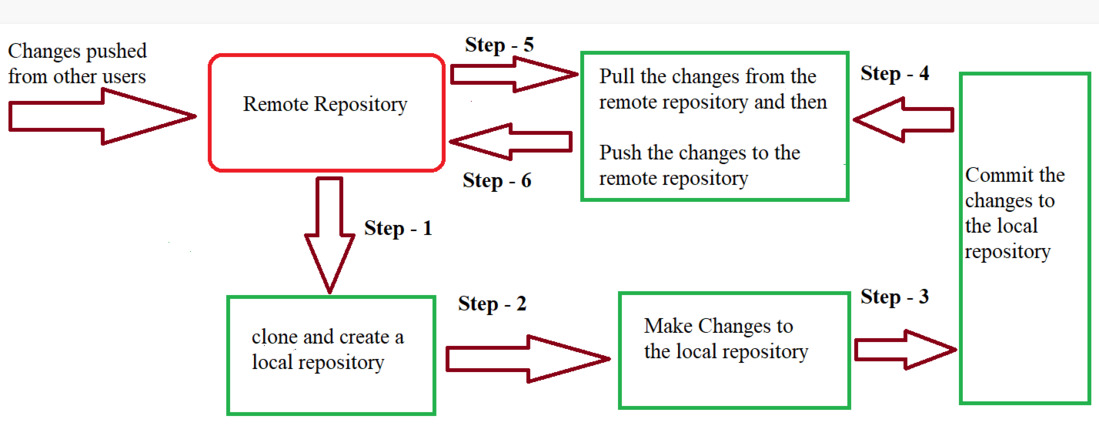
Git Internal Workflow Overview
This is the core way Git works internally
Any change made to a file passes through three stages
Only after these stages does the change become part of Git history
1. Working Directory
This is where you actually do your work
You create new files here
You edit existing files
You delete or modify files
At this stage:
files are just normal files
Git can detect changes
nothing is ready to be saved yet
Example:
if you edit
index.html, the change exists only in the working directoryGit knows something changed, but it has not been told what to do with it
2. Staging Area
- The staging area works like a preparation or selection zone
When you run:
git add .
You are telling Git:
- these are the changes I want to save next
What happens:
selected files move from working directory to staging area
Git clearly knows what should go into the next commit
nothing is saved permanently yet
3. Repository
- The repository is where Git stores everything permanently
When you run:
git commit -m "message"
This is what happens:
changes from staging area are saved into the repository
a commit is created as a snapshot of the project at that moment
Git assigns a unique commit ID to the snapshot
Now:
the changes become part of Git history
the project can be revisited to this state anytime
Simple Text Diagram
Working Directory
       |
       |  git add
       v
Staging Area
       |
       |  git commit
       v
Repository
One-line Understanding
Aap working directory mein kaam karte ho,
staging area mein changes prepare karte ho,
aur repository mein unhe permanently save kar dete ho.
Local Repo Structure Overview
Here is an image of how local repo works & how it is flowed from top to bottom in clean way.
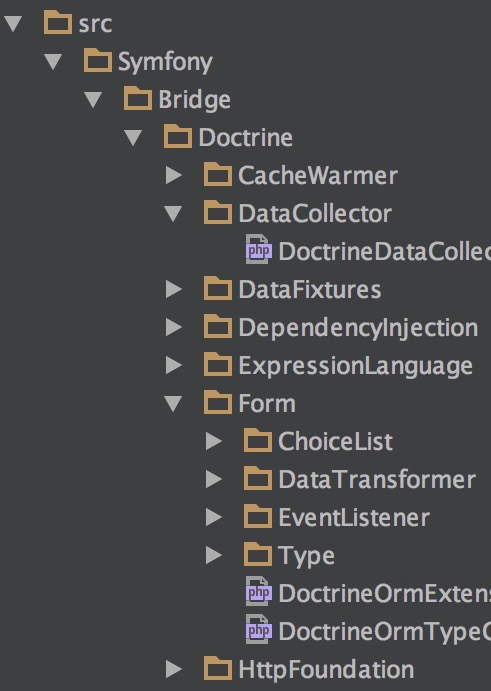
Local Repo Structure Overview
When you run Git init, Git creates a local repository inside your project. This repository exists completely on your system and is responsible for tracking everything related to your code.
Most of Git’s work happens inside a hidden folder called the Git folder. This folder works like the brain of Git.
1 The Git Folder
The Git folder is where Git stores all its internal data. It is automatically created when a repository is initialized.
This folder contains:
commit history
branch information
file snapshots
configuration details
the current position of your work
If this folder is deleted, Git forgets everything about the project.
2 Objects
The objects directory is where Git stores the actual data.
It contains:
file snapshots
commits
directory structures
Every commit you create is stored here in a compressed form. This is the reason Git remains fast and efficient, even when working with large projects.
3 Refs
The refs directory is used to manage references.
It stores:
branches
tags
For example, when you are working on the main branch, the reference for main is stored here and points to a specific commit.
4 Head
Head is a pointer that tells Git where you are currently working.
It points to:
the current branch
and indirectly to the latest commit on that branch
Whenever you switch branches, the Head pointer updates accordingly.
5 Config
The config file stores repository-specific settings.
It includes:
user configuration for the current repository
remote repository URLs
branch-related settings
These settings apply only to the current repository and not globally.
How It All Connects
files are edited in the working directory
commits are stored inside objects
branches are managed through refs
Head keeps track of your current position
config controls repository behavior
All these parts together form the local Git repository.
One-line Understanding
Local repository Git ka internal system hota hai jo commits store karta hai, branches ko track karta hai, aur project mein aap kis stage par ho yeh yaad rakhta hai.
Commit History Flow
Image Of Commit History
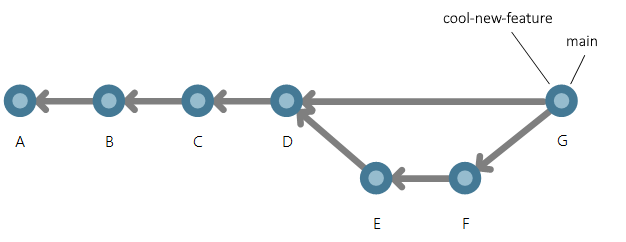
How This Node Flows?
Complete Commit Flow Explanation
This diagram shows how a project grows using the main branch and a feature branch.
Commit A
This is the first commit of the project.
The project started from here.
Commit B
This commit came after A.
Some changes were added and the project moved forward.
Commit C
Another commit after B.
The project continued to grow step by step.
Commit D
This commit is a common point.
From here, a new feature branch was created.
The main branch and feature branch both start from this commit.
Feature Branch Commits E and F
After commit D, work on a new feature started on a separate branch.
Commit E is the first commit on the feature branch.
Commit F is the next commit where more feature work was done.
These commits affect only the feature branch and do not disturb the main branch.
Commit G
While the feature branch was being worked on, the main branch continued separately and reached commit G.
This is the latest commit on the main branch and represents the current stable state of the project.
Merge Result
Project commit A se start hota hai, main branch par aage move karta hai, commit D par feature work ke liye branch hota hai, aur merge ke baad phir se ek saath aa jata hai.