Git Internal Working Structure.
1 How Git Handles Internal Structure
An Image Of How The Git Keeps Records!
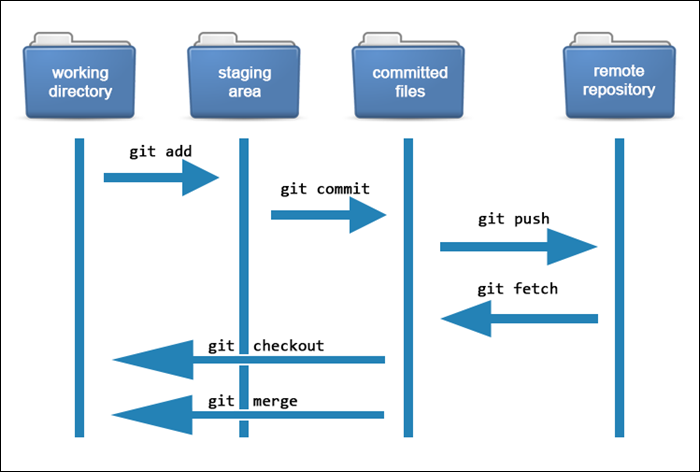
1 Decoding The Image.
Suppose you run a fruit shop.
Every day fruits come in and fruits go out. If you don’t keep track, you will never know what was sold, what came, and what is left.
So what do you do?
First, fruits arrive and are kept in the shop.
Then you note down the details in a register before finalizing the stock.
After that, the final record is stored properly.
Sometimes you also send details to the head office and get updates back from there.
If you skip the register or records, everything becomes confusing and messy.
Git works in the same way.
Technical Way (Git Flow)
1 Working Directory
This is like the fruit shop itself.
You create files
You edit files
You delete or modify files
Changes happen here first, but nothing is recorded yet.
Git can see changes, but it is not saved anywhere.
2 Staging Area
This is like the register where you write what fruits are ready to be counted.
When you run git add:
you are telling Git which changes are important
Git prepares only those selected changes
Nothing is saved permanently yet.
It is just preparation.
Committed Files (Repository)
This is like the final stock record.
When you run git commit:
Git saves a snapshot of the changes
the record becomes permanent
the history is updated
Now Git remembers this state forever.
3 Remote Repository
This is like the head office.
When you push:
- your local records are sent to the remote place
When you fetch:
- updates from others are brought to your system
This helps multiple people stay in sync & work faster.
Simple Understanding
Pehle aap kaam karte ho,
phir jo save karna hai usse prepare karte ho,
phir usse permanently record kar dete ho,
aur finally updates share ya receive karte ho.
2 Understanding The .GIT Folder.
Image Representation Of The .Git Section.
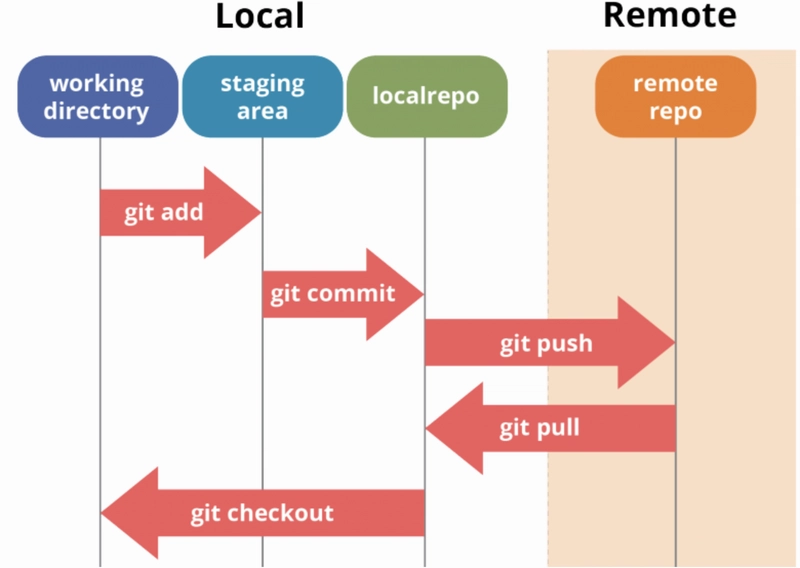
Decoding The Image.
Decoding the Image (Generic Way)
Suppose you are a student preparing notes for an exam.
Every day you read books, watch videos, and write rough notes.
If you don’t manage this properly, you won’t remember what you studied, what is final, and what still needs work.
So what do you do?
First, you write rough notes while studying.
Then you clean and select important points into a fair notebook.
After that, you store the final notes safely so you can revise later.
Sometimes you also share notes with friends or receive updates from them.
If you skip organizing notes, everything becomes confusing and messy.
Git works in the same way.
Technical Way (Git Flow)
1 Working Directory
This is like your rough notebook.
You create files
You edit files
You delete or modify files
Changes happen here first.
Git can see that changes happened, but nothing is recorded yet.
2 Staging Area
This is like selecting important points for your fair notes.
When you use git add:
you tell Git which changes are important
Git prepares only selected changes
Nothing is saved permanently yet.
This stage is only for preparation.
3 Repository (Committed Files)
This is like your final notebook.
When you use git commit:
Git saves a snapshot of the changes
the record becomes permanent
the history is updated
Now Git remembers this version forever.
4 Remote Repository
This is like sharing notes with friends.
you send your saved work to others
you receive updates from others
This helps everyone stay in sync and work smoothly.
Simple Understanding
Pehle aap kaam karte ho,
phir jo save karna hai usse prepare karte ho,
phir usse permanently record kar dete ho,
aur finally updates share ya receive karte ho.
3 Git Objects: Blob, Tree, Commit.
Image Representation Of Git Objects.
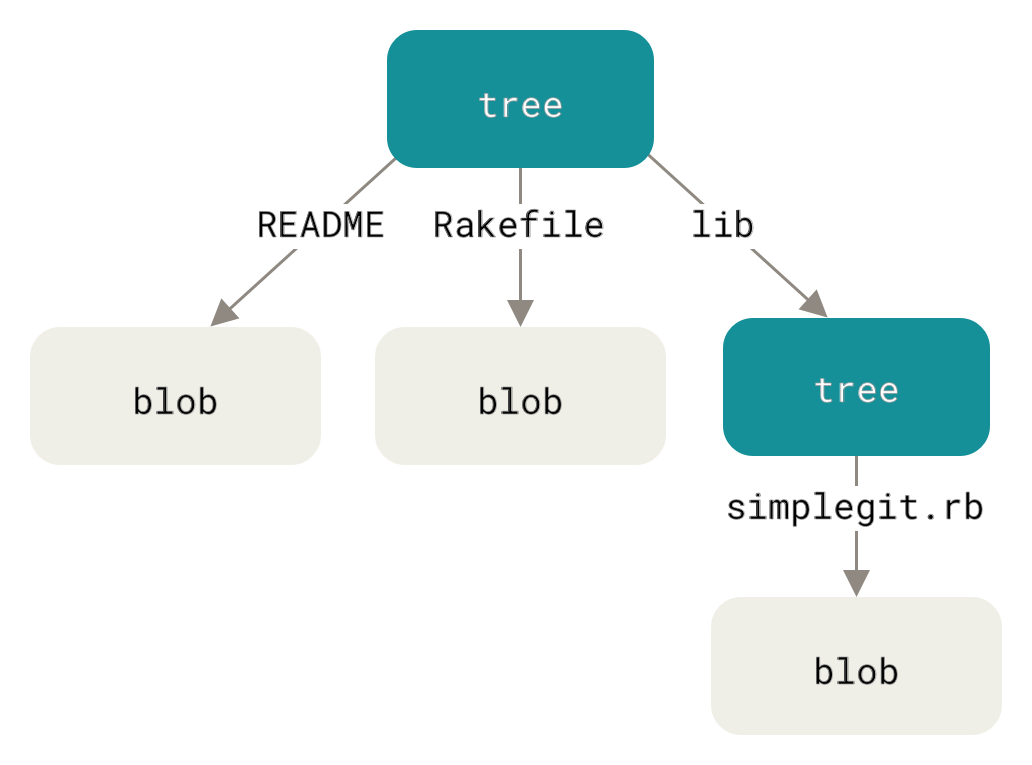
1 Decoding The Image Above
Decoding This Image (Generic Way)
Suppose you have a study folder on your laptop.
Inside that folder:
you have some files like notes
you also have another folder inside it
and that inner folder again has its own file
Now think carefully.
The file contains only the written content.
The folder does not contain the content itself, it only knows what files or folders are inside it.
And the full saved version of this structure is what you care about finally.
Git works exactly like this.
Understanding The Technical Way.
A) Tree (Top One)
The top tree represents a directory.
It does not store file content.
It only stores:
file names
folder names
links to blobs or other trees
Here, this tree contains:
README
Rakefile
lib folder
B) Blob (README and Rakefile)
Each blob stores only file content.
So:
README points to a blob
Rakefile points to a blob
The blob:
does not know the file name
does not know where it is stored
only contains raw data
C) Nested Tree (lib)
The lib entry is another tree.
This means:
lib is a folder
inside it there is another file
That tree again points to:
C1 ) Blob (simplegit.rb)
The file simplegit.rb points to a blob.
This blob stores:
- the actual content of simplegit.rb
Simple Flow (Easy to Remember)
Blob stores file data
Tree organizes files and folders
Tree can point to blobs or other trees
Git builds the full directory structure using this system.
Conclusion:
One-line Understanding
Blob file ka data rakhta hai,
Tree files aur folders ko organize karta hai,
aur Git in dono ko jod ke project ka structure banata hai.
4 How Git Tracks Changes.
Image Representation Of How Git Tracks Changes.
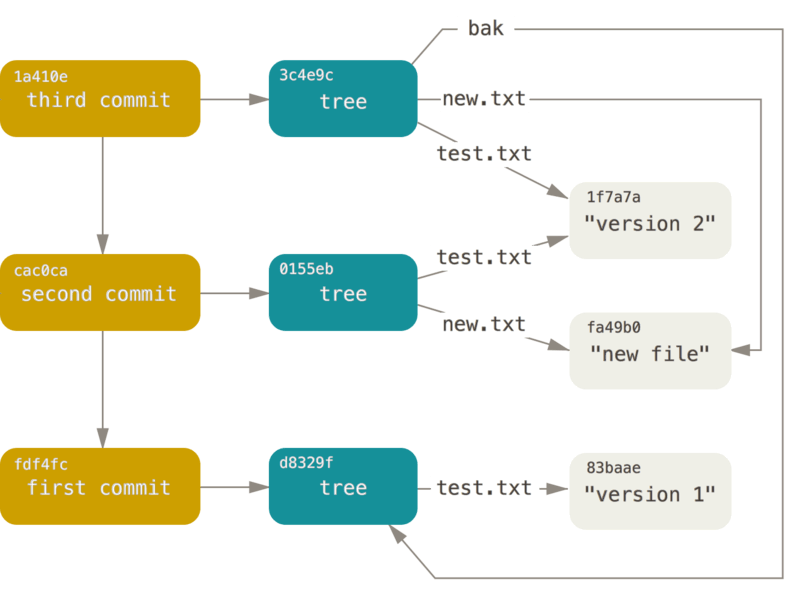
1) Decoding The Image.
Suppose you are writing a document for an assignment.
Day 1
You write a file called test.txt and save it as version 1.
Day 2
You edit the same file and update the content to version 2.
You also add a new file called new.txt.
Day 3
You again save everything properly as a final version.
Important thing here
You are not erasing old versions.
You are saving new full versions, while old ones still exist.
So you can always:
go back to version 1
see what changed in version 2
understand how the document evolved
Git works in exactly this way.
2) Technical Way.(Core Understanding)
A) First Commit
In the first commit:
there is only one file called test.txt
its content is version 1
Git creates:
a blob for the file content
a tree to represent the directory
a commit pointing to that tree
This becomes the starting point.
B) Second Commit
In the second commit:
test.txt is modified
a new file new.txt is added
Git does not delete the old data.
Instead:
test.txt now points to a new blob with updated content
new.txt gets its own blob
a new tree is created
a new commit points to this tree
Old blobs are still kept safely.
C) Third Commit
In the third commit:
files remain mostly the same
Git reuses blobs if content has not changed
This is important.
If a file’s content is unchanged:
Git does not create a new blob
it reuses the existing one
This is how Git is fast and efficient.
What Exactly Is Git Doing?
Every commit points to a tree
Every tree points to blobs or other trees
Blobs store file content
Commits are connected to previous commits
Git is storing Snapshots, not step-by-step edits.
Conclusion.
Git har commit par naya snapshot banata hai, aur jo file change nahi hoti uska data reuse karta hai, isliye history safe aur fast rehti hai.
1) The .Git Folder And Why It Exists
Image Representation Of The .Git Folder.
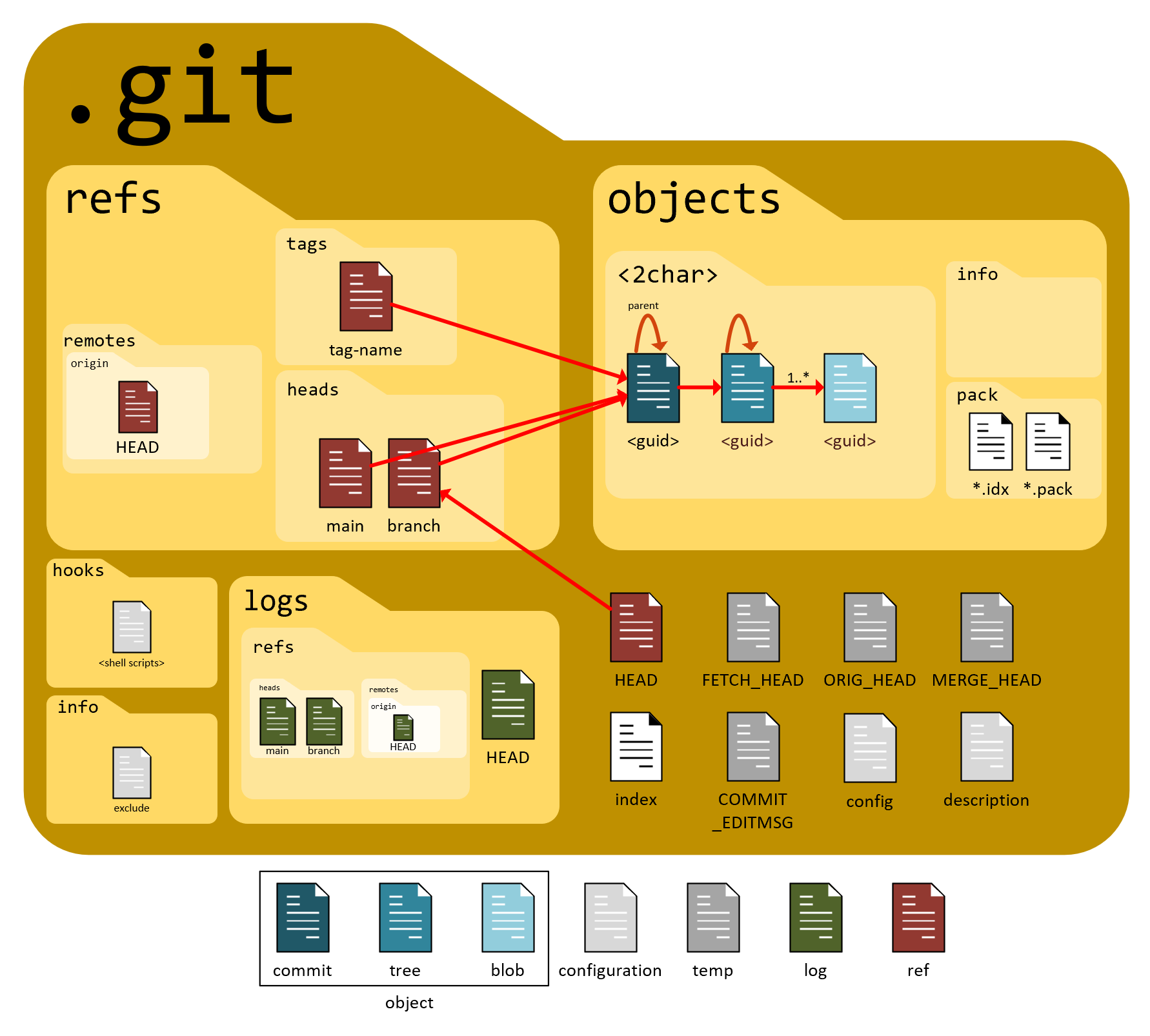
1) Decoding The Image
Suppose you are managing a big office file room.
You have:
files with actual data
registers that point to important files
labels that tell which file is current
logs that record what changed and when
some rules and settings for how things work
You don’t mix everything together.
Each thing has its own place so you never lose track.
Git works in the same organized way.
2) Technical Way (Core)
A) Objects
This is where real data lives.
Inside objects:
blobs store file content
trees store folder structure
commits store project snapshots
Every commit, file, and folder is saved here in a compressed way.
This is Git’s storage room.
B) Refs
Refs are like labels or bookmarks.
They store:
branch names
tags
remote references
A ref does not store data itself.
It only points to a commit inside objects.
For example:
main points to the latest commit
a tag points to a specific commit
C) HEAD
HEAD tells Git where you currently are.
It points to:
the current branch
or directly to a commit
Whenever you switch branches, HEAD moves.
This is how Git knows where your work is happening.
D) Logs
Logs keep a record of movement.
They store:
where HEAD was before
where branches moved
history of reference changes
This helps Git recover data even if something goes wrong.
E) Index
Index is the staging area.
It stores:
files that are prepared for commit
the exact content that will be saved next
This is why Git allows selective commits.
F) Config
Config stores repository-specific settings.
It controls:
user details
remote URLs
branch behavior
These settings apply only to this repository.
G) Hooks
Hooks are scripts.
They run:
before commit
after commit
during merge
They help automate checks and tasks.
H) Info and Pack
Info contains extra information like ignored files.
Pack files store objects efficiently to save space.
I) How Everything Connects (Simple Flow)
you work on files
Git stores content as blobs
trees organize blobs
commits save snapshots
refs point to commits
HEAD tells current position
logs remember movements
All of this together makes Git powerful and safe.
One-line Understanding
.git folder Git ka control room hota hai, jahan data store hota hai, pointers manage hote hain, aur poori history safely handle hoti hai.
2 Breaking Down Git Objects In a Simple, Conceptual Manner.
1 )Image Representatiom To Understand Conceptual Way.
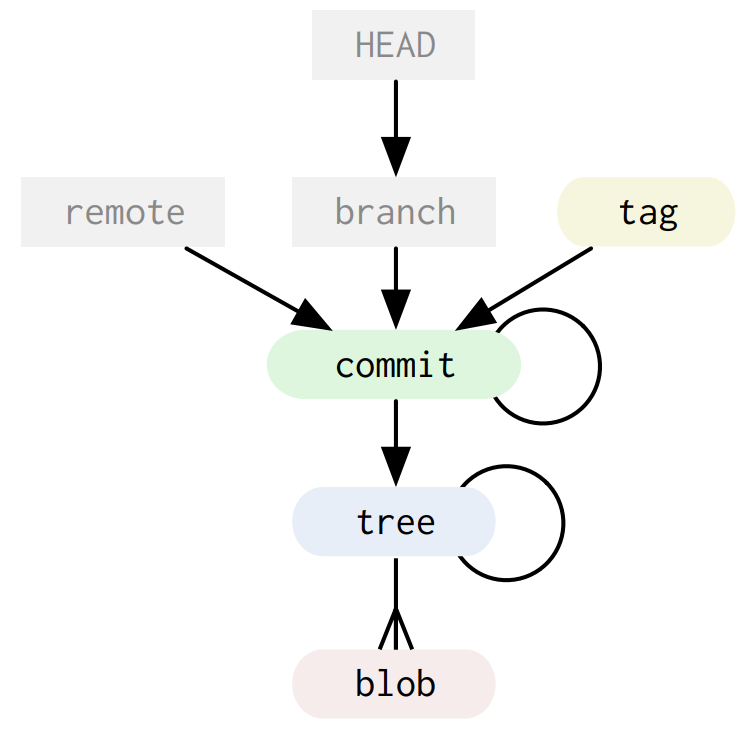
2) Decoding The Image(Generic)
Suppose you are writing a book.
You are currently working on one chapter.
You also sometimes mark an important version with a sticky note.
You may also have a shared copy stored online.
Now think like this:
Your mind knows which chapter you are working on
The chapter points to a saved version
That saved version contains the structure of pages
Pages contain actual written content
Git works in the same layered way.
3) Technical Way(Core)
This Image shows how HEAD, branch, commit, tree, and blob are connected internally.
A) HEAD
HEAD tells Git where you are right now.
it points to the current branch
it moves when you switch branches or commits
Think of HEAD as your current position.
B) Branch
A branch is just a pointer.
it points to a commit
it moves forward when you make new commits
Branch does not store code.
It only remembers the latest commit.
C) Commit
A commit is a saved snapshot.
branch points to a commit
tag can also point to a commit
remote reference also points to a commit
This commit represents the project at that moment.
D) Tree
Tree represents folder structure.
commit points to a tree
tree organizes files and folders
tree can point to other trees or blobs
It does not store file content.
E) Blob
Blob stores actual file data.
blob contains only content
no file name
no folder info
This is the lowest level where real data lives.
F) Tag and Remote (Side Pointers)
tag points to a specific commit and never moves
remote points to where another copy of the branch is
Both are just references to commits.
G) Simple Flow to Remember
HEAD
→ branch
→ commit
→ tree
→ blob
Everything finally leads to file content.
Conclusion.
HEAD batata hai aap kaha ho, branch commit ko point karta hai, commit tree ko, aur tree blob ke through actual data tak pahunchta hai.
3) what happens internally during Git Add and Git -Commit.
1) Image Representation.
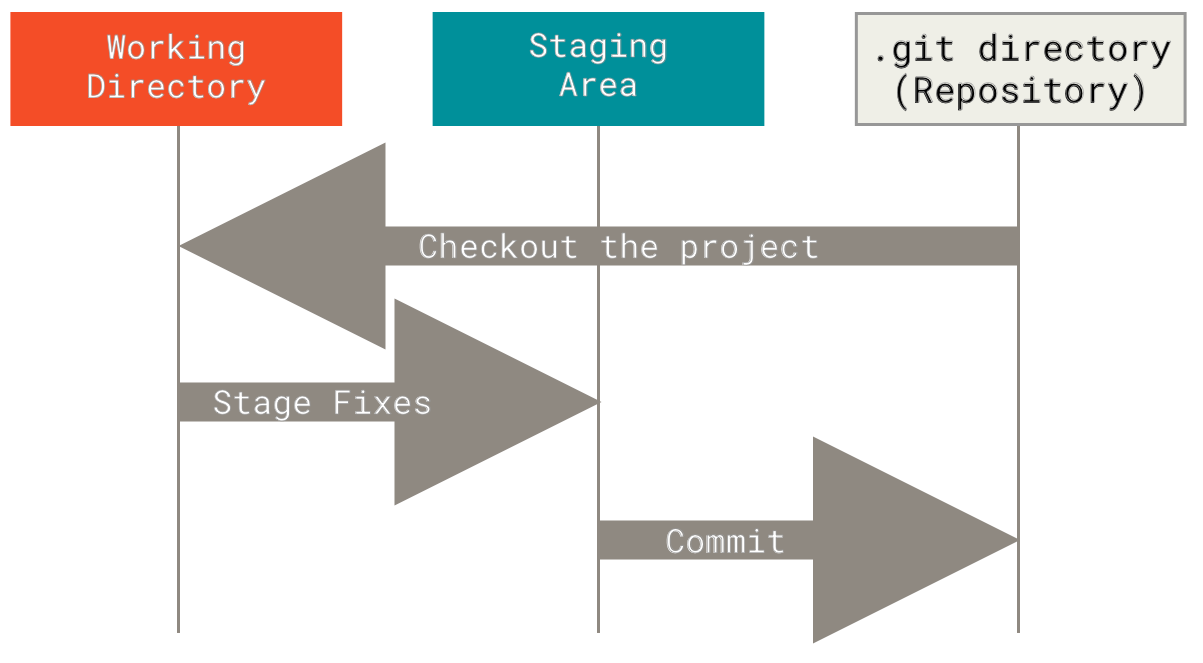
2) Decoding This Image.
3) Decoding This (Generic Way)
Suppose you are repairing a bike.
First, you make changes directly on the bike.
You tighten screws, change parts, and test things.
Before final delivery, you check and note down what fixes are correct and ready.
Only after that, you officially record the repair as completed.
Sometimes, you also restore the bike back to an older condition to compare or recheck.
Git works in the same way.
4) Technical Way (Image Shows Core Concept)
This Image explains how Working Directory, Staging Area, and Git Repository interact with each other.
A) Working Directory
This is where you actually work.
you write code
you edit files
you fix bugs
Changes happen here first.
Nothing is saved permanently yet.
B) Staging Area
This is the preparation area.
When you stage fixes:
Git copies selected changes from working directory
stores them in the staging area
This step is done using git add.
At this point, changes are ready but not recorded.
C) Git Repository (.git Directory)
This is where Git permanently stores history.
When you commit:
staged changes are saved
a snapshot is created
history is updated
This data lives inside the .git directory.
D) Commit Flow (Right Arrow)
Working directory
→ staging area
→ repository
This happens when you add and commit changes.
E) Checkout Flow (Left Arrow)
When you checkout:
Git takes data from the repository
updates files in the working directory
This allows you to:
move to older versions
switch branches
restore files
F) Simple Understanding
You work first,
you prepare what to save,
you permanently record it,
and you can always come back to any saved state.
Conclusion.
Working directory mein kaam hota hai, staging area mein changes prepare hote hain, aur commit ke baad woh .git repository mein permanently save ho jaate hain.
4) How Git Uses Hashes To Ensure Integrity?
Image Representation.
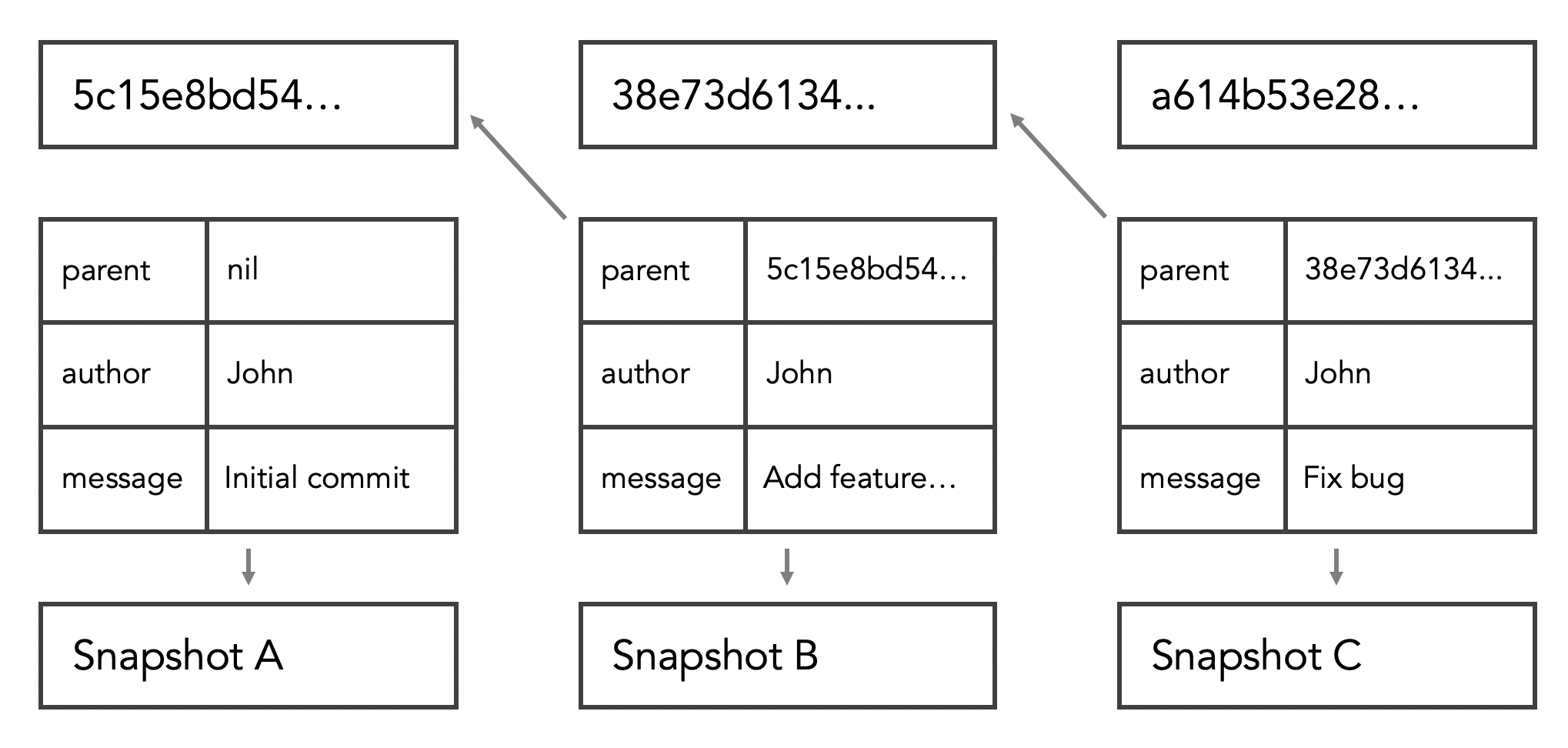
Decoding The Image(Generic Way)
Suppose you are maintaining a written record book.
Every time you write a new page:
you write today’s content
you also write the page number of the previous page
Now imagine someone tries to secretly change an old page.
The page numbers won’t match anymore.
You immediately know something is wrong.
This is exactly how Git protects itself.
A) What This Image Is Showing (In Simple Words)
This image shows how commits are connected using hashes.
Each snapshot has:
its own unique hash
the hash of the previous snapshot
author name
commit message
These snapshots are:
Snapshot A
Snapshot B
Snapshot C
And they are linked one after another.
How the Linking Works
Snapshot A
This is the first commit.
It has no parent.Snapshot B
This commit stores the hash of Snapshot A as its parent.Snapshot C
This commit stores the hash of Snapshot B as its parent.
So internally, it looks like a chain.
Each commit depends on the previous one.
B) Where Integrity Comes From
Here’s the important part.
If someone tries to:
change Snapshot A
or modify Snapshot B
Then:
the hash of that snapshot changes
the next commit’s parent hash no longer matches
Git immediately knows the history is broken.
This is how Git detects tampering or corruption.
D) Why Git History Is Trusted
Because:
commits are connected using hashes
hashes depend on content
changing content breaks the chain
Git does not trust file names or dates.
Git trusts hashes.
Simple Understanding
Git connects every commit to the previous one using hashes, so even a small change breaks the chain and gets detected.
Conclusion.
Git har commit ke andar previous commit ka hash rakhta hai, aur agar purane data mein thoda bhi change ho jaaye toh poori chain toot jaati hai.
5)Lets Memorize The Commands!
Image.
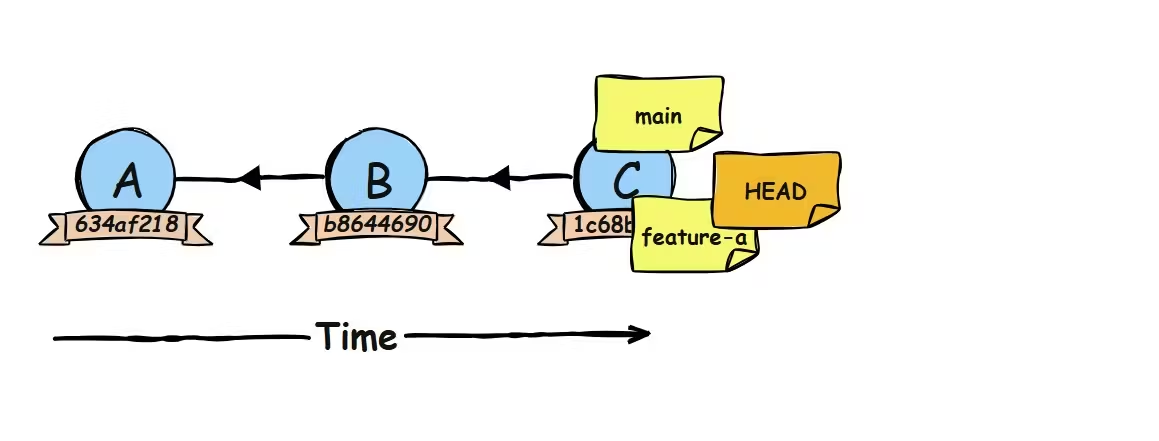
Build a Mental Model of Git (Just the Flow)
Think of Git as a movement of changes, not commands.
A) The Flow Goes Like This:
You Work
   ↓
You Prepare
   ↓
You Save
   ↓
You Share (optional)
That’s Git. Everything else is detail.
B) What Is Actually Moving
Your Changes
   ↓
Prepared Changes
   ↓
Saved Snapshot
   ↓
Shared Copy
Git is just helping you move changes safely through these stages.
C) The Core Areas (Remember This)
Working Area
   ↓
Staging Area
   ↓
Repository
   ↓
Remote (optional)
You work in the first box
You select what matters in the second
You lock it in history in the third
You sync with others in the fourth
D) What Git Really Does (Big Picture)
Git does not auto-save
Git does not guess
Git waits for you
You decide:
what moves forward
when it becomes permanent
when it gets shared
E) If You Remember Only One Thing
Git is not about commands.
Git is about moving changes step by step.
Commands are just buttons to move things along this flow.
Conclusion.
Git ek flow hai jahan aap pehle kaam karte ho, phir select karte ho, phir save karte ho, aur chaaho toh share karte ho.
6) Structure Of The .Git Directory
1) Image Of How Folder Looks Like
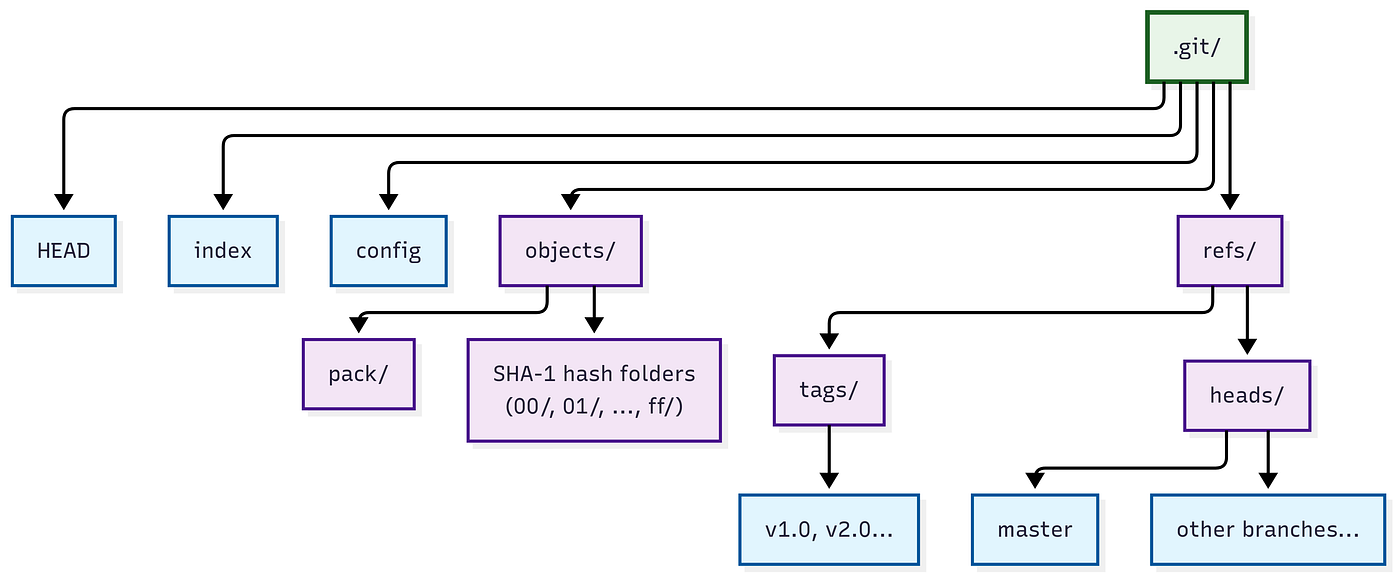
2) Explaination Below
A. Objects
Stores all Git data like file contents, folder structure, and commits.
B. Refs
Keeps pointers to commits for branches, tags, and remotes.
C. Head
Tells Git where you are currently working (current branch or commit).
D. Index
Acts as the staging area holding changes ready to be committed.
E. Logs
Records the movement history of HEAD and branches for recovery.
F. Config
Stores repository-specific settings and configuration.
G. Hooks
Contains scripts that run automatically on certain Git actions.
H. Info
Holds extra metadata like ignore rules specific to this repository.
I. Fetch_Head
Stores information about the most recent fetch operation.
J. Orig_Head
Remembers the previous HEAD position before risky operations.
K. Merge_Head
Stores the commit being merged during an active merge.
One-line big picture
The .git directory is Git’s control room where data, pointers, history, and state are managed.
7) Relationship between commits, trees, and blobs.
A) Text Flow (Mental Model)
Commit
  |
  v
Tree
  |
  v
Blob
B) Expanded Flow Text-only
Commit
  - saves snapshot
  - links history
        |
        v
Tree
  - organizes folders
  - maps file names
        |
        v
Blob
  - stores file data
C) Folder-level View (Crystal Clear)
Commit
  → Tree (project structure)
        → Blob (file content)
        → Blob (file content)
D) Key Differences?
Understand Better With Points.
| Commit | Tree | Blob |
| Represents a saved snapshot of the project | Represents the directory and folder structure | Represents the actual content of a file |
| Points to a tree object | Points to blobs and other trees | Stores raw file data only |
| Stores commit message | Stores file and folder names | Does not store file name |
| Stores author information | Stores permissions and metadata | Does not store permissions |
| Stores commit timestamp | Defines project layout at that time | Content-based storage |
| Links to parent commit | Acts as a bridge between commit and blobs | Same content shares same blob |
| Used to build commit history | Used to organize project structure | Used to store file contents efficiently |
8) Internal Flow Of Git Add and Git Commit.
1) Image Representation.
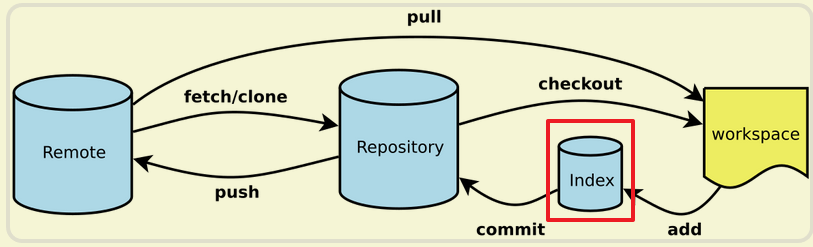
2) Decoding This Image.
A) Suppose you are working on a group assignment.
There is:
a shared Google Drive folder
your own laptop
and a rough notes page where you decide what is final
First, you bring files from Google Drive to your laptop.
Then you work on them locally.
You select what is ready and final.
You save it properly.
Finally, you upload it back so everyone else can see it.
Sometimes, you also pull new updates from others.
Git works in exactly this way.
A) Technical Way (Core Of Image)
This diagram shows the complete Git workflow from start to end.Remote
This is the shared place.
code lives on GitHub or another remote
multiple people work from here
Nothing changes locally unless you bring data from here.
B) Fetch or Clone
This is how data comes from remote to your local repository.
fetch downloads updates
clone downloads everything the first time
At this stage:
files are not changed in your workspace
only Git’s local memory is updated
C) Local Repository
This is Git’s internal storage on your system.
commits live here
branches live here
history lives here
This is inside the .git directory.
D) Checkout
Checkout moves data from repository to workspace.
files appear in your working directory
you can now see and edit them
This is how Git shows you a specific version of the project.
E) Workspace (Working Directory)
This is where you actually work.
you write code
you edit files
you fix bugs
Nothing here is saved automatically.
F) Add (Index / Staging Area)
This is the most important middle layer.
selected changes move to index
Git prepares exactly what will be saved
This step decides what goes into the next commit.
G) Commit
Commit moves data from index to repository.
a snapshot is created
history is updated
branch moves forward
Now the changes are permanent locally.
H) Push
Push sends your local commits to the remote.
others can now see your work
shared history is updated
I) Pull
Pull brings remote changes:
fetches updates
merges them into your local work
This keeps everyone in sync.
J) Full Mental Flow (Text-only)
Remote
  ↓
Local Repository
  ↓
Workspace
  ↓
Index
  ↓
Repository
  ↓
Remote
Everything moves in steps. Nothing jumps.
K) Conclusion.
Git ek flow hai jahan code remote se aata hai, local mein kaam hota hai, index mein prepare hota hai, commit ke through save hota hai, aur phir wapas remote tak jaata hai.
Comments
Join the discussionNo comments yet. Be the first to comment.